
CMS Manager Guide
As a CMS Manager, your job is to manage the public-facing website content. You create and edit pages, manage protocol documentation, and ensure the website content is accurate and up to date in both Arabic and English.
What you can do:
- Create, edit, and publish website pages
- Manage protocol documentation
- Work with bilingual content (Arabic and English)
What you cannot do:
- Access or modify vehicle safety assessments
- Manage users or system settings
- Access the Media Library (this is a known issue being fixed)
Logging In
Section titled “Logging In”-
Open the portal
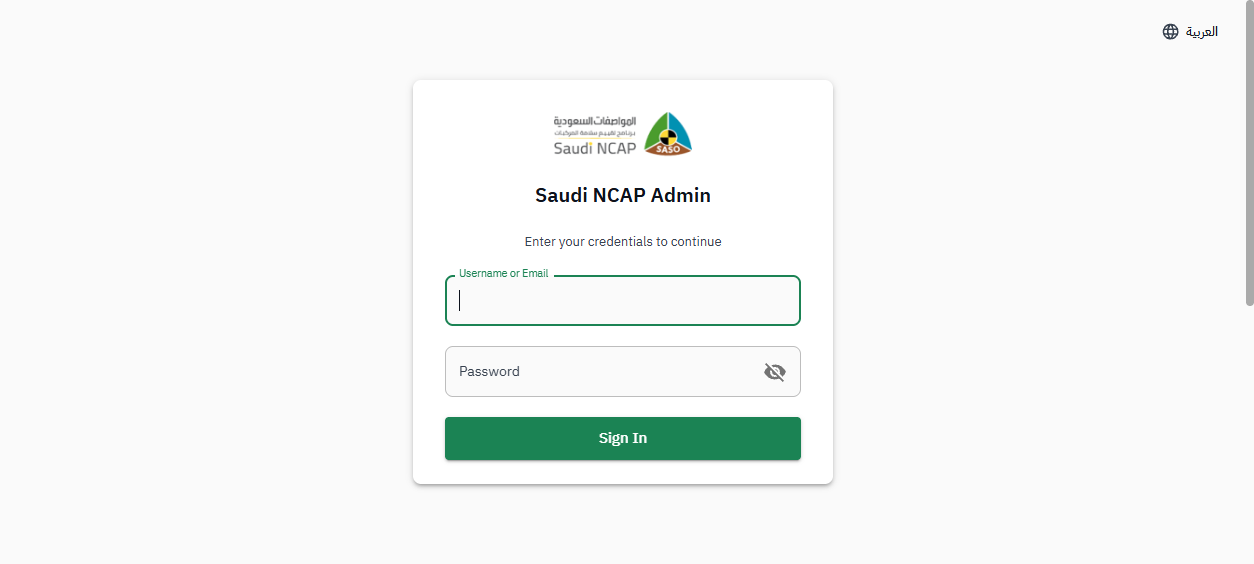
Go to the Saudi NCAP Admin Portal. When the browser authentication popup appears, enter the portal credentials provided by your administrator.
-
Sign in with your account
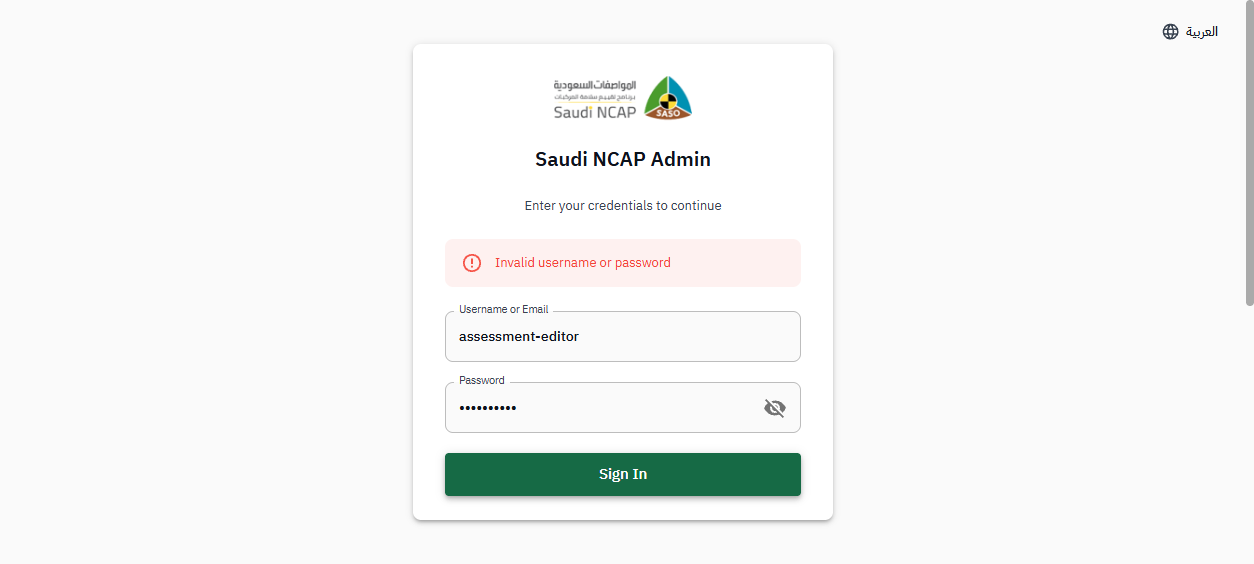
On the login page, enter your username and password, then click Sign In.
-
Verify your identity
On the verification page, select Email as the method, click Send Code, enter the 6-digit code you receive, and click Verify. You will be redirected to your dashboard.
What You See
Section titled “What You See”After logging in, you arrive at the Dashboard. The CMS Manager has the most focused sidebar of all roles, with only three sections:
- Dashboard — overview and statistics
- Pages — manage website content pages
- Protocols — manage protocol documentation
Creating a New Page
Section titled “Creating a New Page”-
Go to the Pages section
Click Pages in the sidebar to see the list of all content pages.
-
Click ”+ Add Page” (or the equivalent create button)
This opens the page editor.
-
Fill in the content
The page editor includes fields for both Arabic and English content. Fill in:
- Page title (in both languages)
- Page content / body (in both languages)
- Any additional metadata required
-
Save as Draft
Save the page. It will be in Draft status until you publish it.
Editing an Existing Page
Section titled “Editing an Existing Page”-
Go to the Pages section
Click Pages in the sidebar.
-
Find the page
Browse the list or use the search to find the page you want to edit.
-
Open the page
Click on the page row or the edit icon to open it in the editor.
-
Make your changes
Update the Arabic and/or English content as needed.
-
Save
Click Save to keep your changes.
Publishing and Unpublishing a Page
Section titled “Publishing and Unpublishing a Page”To make a page visible on the public website:
-
Open the page
Go to Pages and open the page you want to publish.
-
Publish the page
Use the Publish toggle or button to make the page live. The page becomes visible on the public website.
-
Unpublish if needed
To remove a page from the public website without deleting it, toggle the publish status off. The page is hidden from the public but remains in the system for future use.
Managing Protocols
Section titled “Managing Protocols”The Protocols section allows you to view and manage protocol documentation for the public website.
-
Go to the Protocols section
Click Protocols in the sidebar.
-
View or edit protocols
Browse the list of protocols. You can view details and manage the protocol content as needed.
Known Differences
Section titled “Known Differences”The following items are temporary and will be corrected in a future update:
- Media Library not accessible: The Media Library is not currently visible in your sidebar. This means you cannot upload images directly. This will be added in a future update. In the meantime, contact your Admin if you need media files uploaded.