
Assessment Reviewer Guide
As an Assessment Reviewer, your job is to review submitted vehicle safety assessments for accuracy and completeness. You decide whether an assessment is ready for publication or needs corrections.
What you can do:
- Review assessments submitted by Editors
- Approve assessments that meet quality standards
- Return assessments with comments for correction
- Make minor edits and approve in one step
What you cannot do:
- Create new assessments from scratch
- Publish assessments to the public website
- Manage users or system settings
Logging In
Section titled “Logging In”-
Open the portal
Go to the Saudi NCAP Admin Portal. When the browser authentication popup appears, enter the portal credentials provided by your administrator.
-
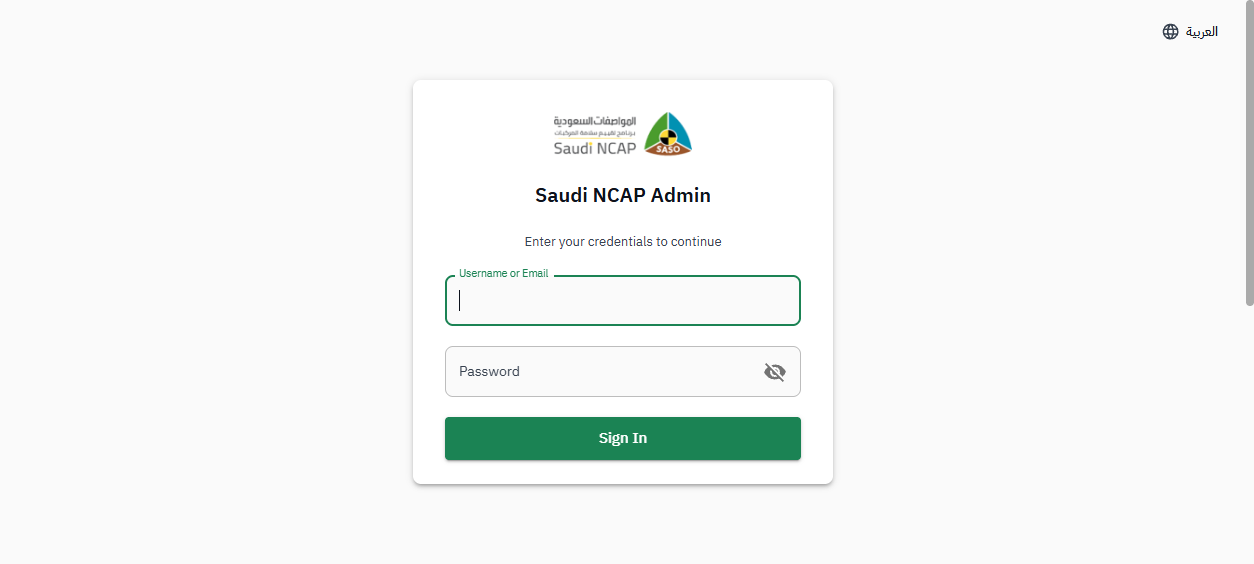
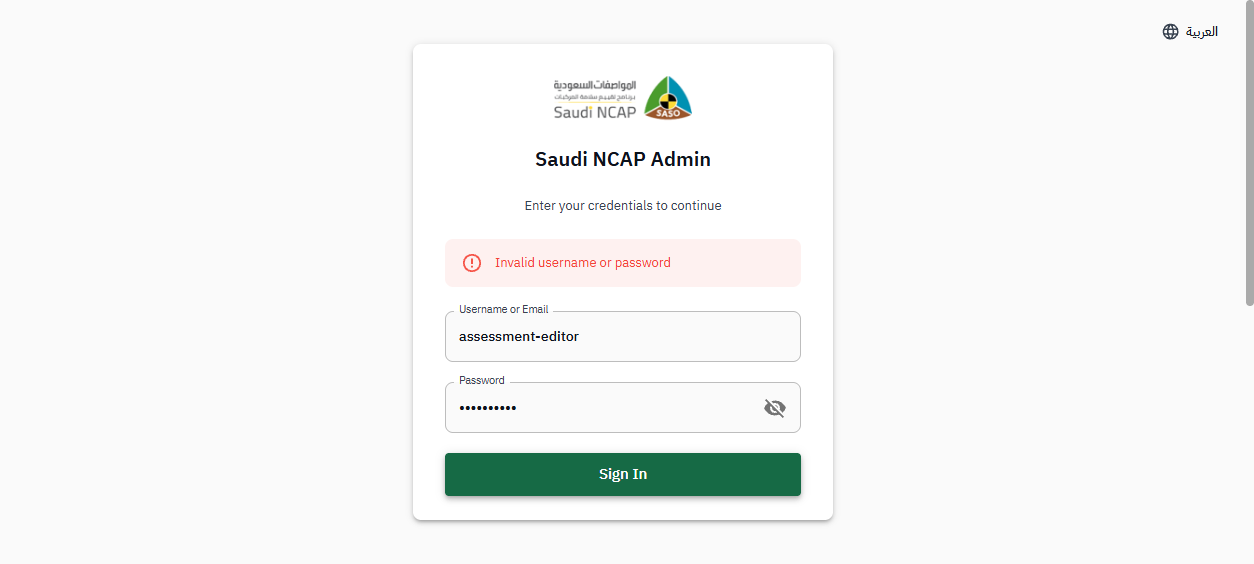
Sign in with your account
On the login page, enter your username and password, then click Sign In.
-
Verify your identity
On the verification page, select Email as the method, click Send Code, enter the 6-digit code you receive, and click Verify. You will be redirected to your dashboard.
What You See
Section titled “What You See”After logging in, you arrive at the Dashboard. The left sidebar shows the sections you have access to.
Your main working area is the Assessments section, where you will find assessments waiting for your review.

Approving an Assessment
Section titled “Approving an Assessment”When an Editor submits an assessment, it appears with Under Review status. To approve it:
-
Go to the Assessments page
Click Assessments in the sidebar.
-
Find assessments waiting for review
Look for assessments with Under Review status. You can use the Status filter to show only these.
-
Open the assessment
Click on the assessment row to view its details and review the data.
-
Review the content
Check the vehicle information, safety ratings, and test results for accuracy and completeness.
-
Click “Approve”
If everything is correct, click the Approve button. The assessment status changes to Approved and it moves to the Admin’s queue for publication.
Returning an Assessment
Section titled “Returning an Assessment”If the assessment needs corrections, return it to the Editor with comments:
-
Open the assessment
Open the Under Review assessment you want to return.
-
Click “Return”
Click the Return button.
-
Enter your comment
A comment field appears. You must explain what needs to be corrected — the comment is mandatory. Be specific so the Editor knows exactly what to fix.
-
Confirm
Submit the return. The assessment status changes to Re-Edit and the Editor can now see your comments and make corrections.
Edit and Approve
Section titled “Edit and Approve”For minor corrections (typos, small data fixes), you can edit the assessment yourself and approve it in one step, without sending it back to the Editor:
-
Open the assessment
Open the Under Review assessment.
-
Make your edits
Correct the minor issues directly in the assessment form.
-
Click “Approve”
After making your edits, click Approve. The assessment is saved with your corrections and moves to Approved status.
Known Differences
Section titled “Known Differences”The following items are temporary and will be corrected in a future update:
- Extra sidebar items: You may see Vehicles, System Configuration, and Media Library in the sidebar. These are not intended for the Reviewer role and can be ignored.
- Create button visible: The ”+ New Assessment” button may appear on the Assessments page. As a Reviewer, assessment creation is not part of your workflow.