
Assessment Editor Guide
As an Assessment Editor, your job is to create and edit vehicle safety assessments. You fill in vehicle details, safety ratings, and test results, then submit completed assessments for review.
What you can do:
- Create new assessments
- Edit assessments in Draft or Re-Edit status
- Submit assessments for review
- Export the assessment list as CSV
What you cannot do:
- Approve or reject assessments
- Publish assessments to the public website
- Manage users or system settings
Logging In
Section titled “Logging In”-
Open the portal
Go to the Saudi NCAP Admin Portal. When the browser authentication popup appears, enter the portal credentials provided by your administrator.
-
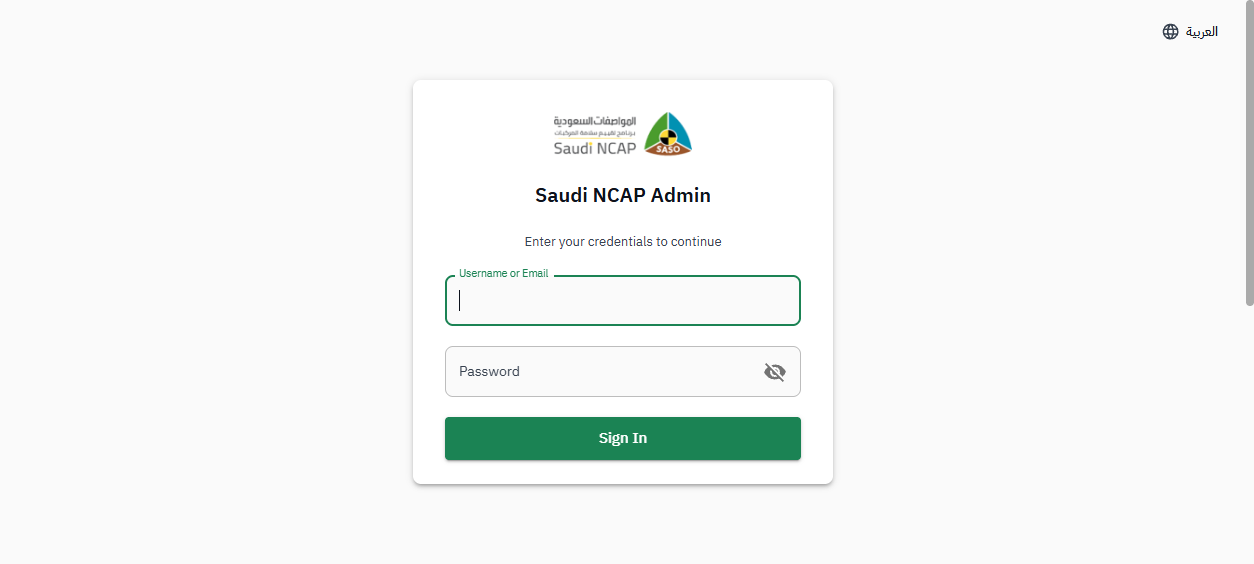
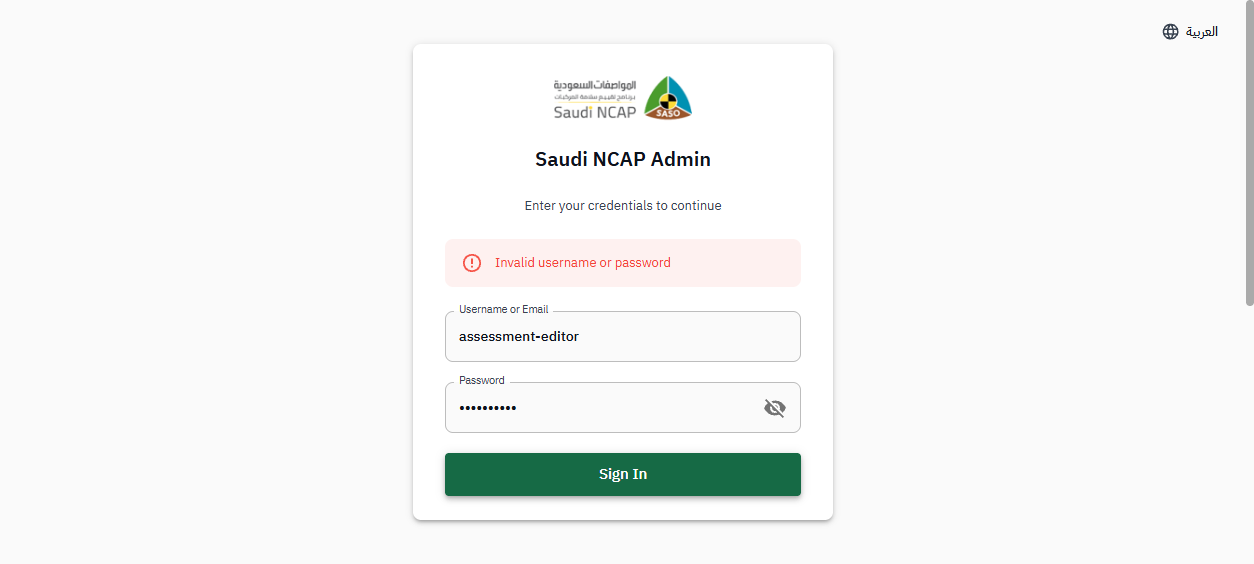
Sign in with your account
On the login page, enter your username and password, then click Sign In.
-
Verify your identity
On the verification page, select Email as the method, click Send Code, enter the 6-digit code you receive, and click Verify. You will be redirected to your dashboard.
What You See
Section titled “What You See”After logging in, you arrive at the Dashboard. The left sidebar shows the sections you have access to.
Your main working area is the Assessments section, which you can access by clicking “Assessments” in the sidebar.
Creating a New Assessment
Section titled “Creating a New Assessment”-
Go to the Assessments page
Click Assessments in the sidebar. You will see the list of all assessments.
-
Click ”+ New Assessment”
Click the green + New Assessment button in the top-right corner. This opens the assessment creation form.
-
Step 1 — Vehicle Information
Select the vehicle make, model, and year. Fill in the basic vehicle details.
-
Step 2 — Adult Safety
Enter the adult safety test results and star ratings.
-
Step 3 — Child Safety
Enter the child safety test results and star ratings.
-
Step 4 — Safety Assist
Enter the safety assist features and scores.
-
Save your work
Click Save at any point to save the assessment as a Draft. You can return to it later to continue editing.
Editing a Draft Assessment
Section titled “Editing a Draft Assessment”-
Open the Assessments list
Click Assessments in the sidebar.
-
Find your draft
Use the Status filter to select “Draft” to see only your draft assessments.
-
Open the assessment
Click on the assessment row to open it.
-
Make your changes
Edit any section of the form as needed.
-
Save
Click Save to keep your changes. The assessment remains in Draft status.
Submitting for Review
Section titled “Submitting for Review”When your assessment is complete and ready for review:
-
Open the assessment
Open the completed assessment from the Assessments list.
-
Click “Submit for Review”
The Submit for Review button is available inside the assessment form. Click it to send the assessment to the Reviewer.
-
Confirmation
The assessment status changes to Under Review. You can no longer edit it until a Reviewer returns it to you.
Re-Editing a Returned Assessment
Section titled “Re-Editing a Returned Assessment”If a Reviewer returns your assessment with comments, you need to address their feedback and resubmit.
-
Find the returned assessment
Go to the Assessments list. Look for assessments with Re-Edit status, or use the Status filter to find them.
-
Review the comments
Open the assessment. The Reviewer’s comments explain what needs to be corrected.
-
Make the requested changes
Edit the relevant sections based on the feedback.
-
Resubmit
Click Submit for Review again to send the corrected assessment back to the Reviewer. The status returns to Under Review.
Exporting the Assessment List
Section titled “Exporting the Assessment List”To download the assessment list as a spreadsheet:
- Go to the Assessments page.
- Click the Export CSV button next to the + New Assessment button.
- A CSV file will download to your computer.
Known Differences
Section titled “Known Differences”The following items are temporary and will be corrected in a future update:
- Extra sidebar items: You may see Vehicles, System Configuration, and Media Library sections in the sidebar. These are not intended for your role and can be ignored.
- Delete button on all rows: A delete icon currently appears on every assessment row, including those you did not create. Do not use this on assessments that are not your own drafts.