
Login & Authentication
The portal uses a three-layer authentication process: HTTP Basic Auth, application login, and OTP verification.
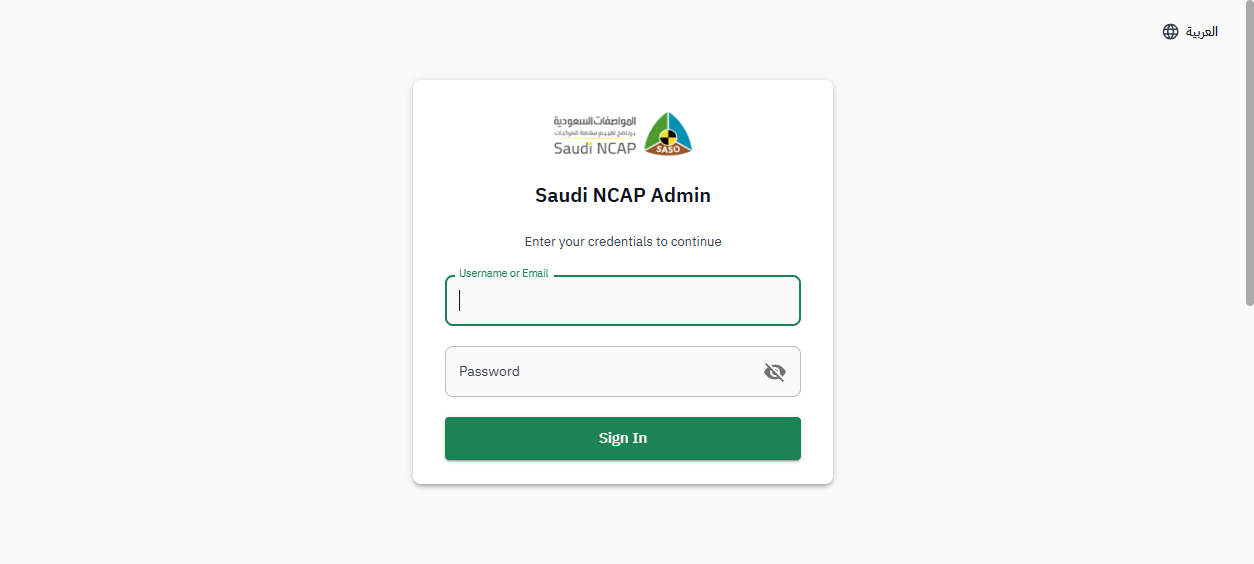
Login Procedure
Section titled “Login Procedure”-
HTTP Basic Authentication
When first accessing
https://ncap.dev/admin/, the browser shows a basic auth popup.Field Value Username ncapPassword ncap@2026This is cached for the browser session — you only need to enter it once.
-
Application Login
On the login page at
/admin/login, enter your role credentials:Field Action Username Enter your username (see credentials table below) Password Enter your password Sign In Click the Sign In button -
OTP Verification
After signing in, you’re redirected to
/admin/otp— the “Verify Your Identity” page.
- Choose Email as the verification method
- Click Send Code
- On the staging environment, the OTP appears directly on screen in a blue info box: “Staging OTP: XXXXXX”
- Enter the 6-digit code into the “Verification Code” field
- Click Verify
- You’re redirected to the dashboard
Role Credentials
Section titled “Role Credentials”| Role | Username | Password | Notes |
|---|---|---|---|
| Assessment Editor | assessment-editor | Pass@123! | |
| Assessment Reviewer | assessment-reviewer | Pass@123! | |
| CMS Manager | cms-manager | Pass@123! | |
| Admin | Admin | Pass@123! | Capital A in username |
| Guest | guest | Pass@123! | |
| Super Admin | sysadmin | Pass@123! | Full access — Mohamed Hazem |
Known Login Issues
Section titled “Known Login Issues”- “Something went wrong” error — A React error boundary may appear after login/logout transitions. Click “Go To Dashboard” or refresh to recover.
- Dark mode persistence — Theme preference persists in localStorage across user sessions. If a previous user enabled dark mode, it stays for the next login.
- Session sharing — Chrome shares cookies across all tabs. You cannot have multiple roles logged in simultaneously in the same browser.
Logout
Section titled “Logout”Click the user avatar in the top-right corner of the header, then select Logout from the dropdown menu.